Breeze
Recommended starting pointAutomatically adjusts fan speed to CPU and GPU temperature. The ready-made profile is already configured; you can save your own rules separately for power adapter and battery.
Set up Breeze ↗Let automation handle cooling, choose fan speed yourself and monitor heat right from the menu bar.
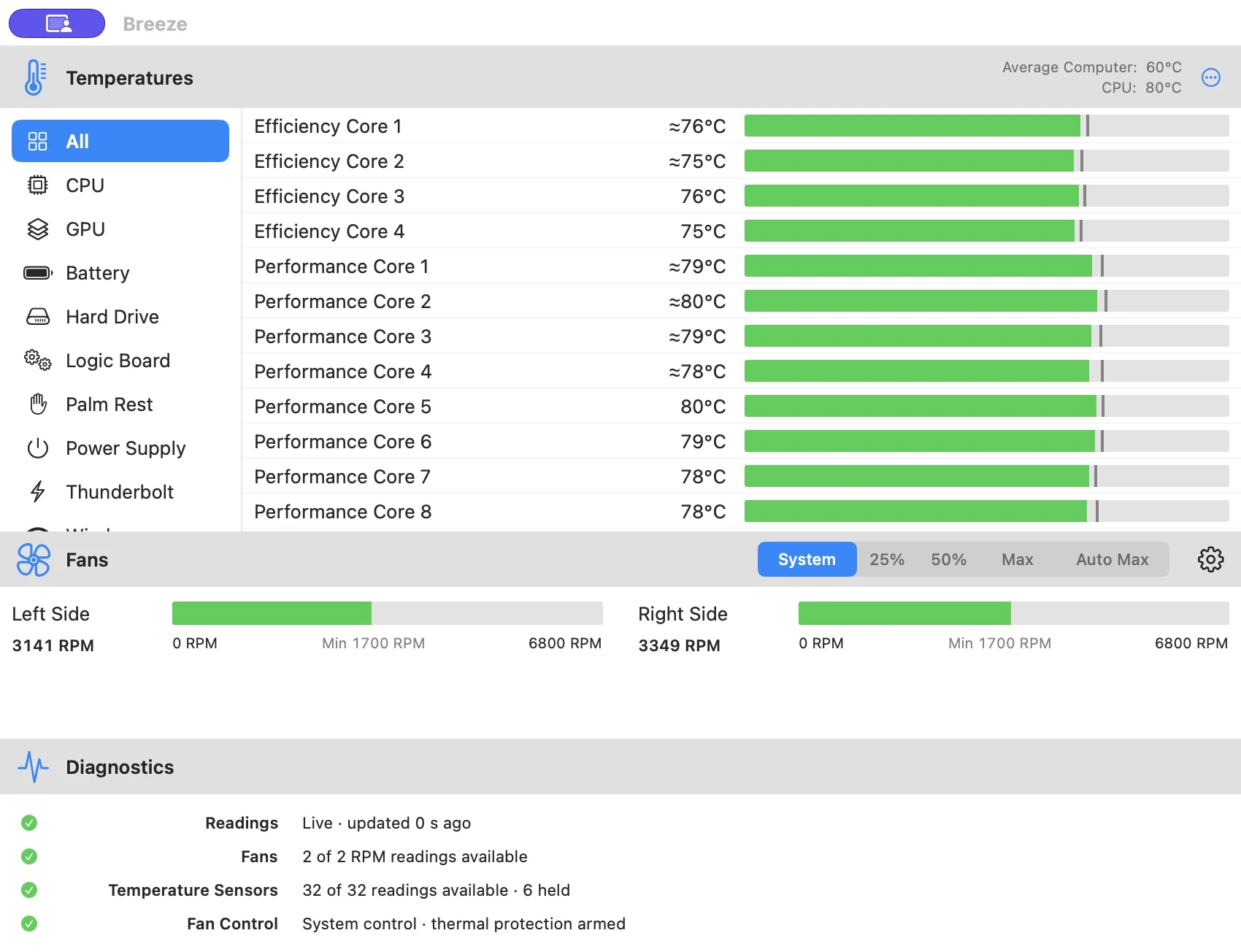
See temperatures for the CPU, GPU and other available components alongside fan speed. Everything you need to monitor your Mac as you work.
Find a sensor through search or categories. Current values, peaks and reading status help you understand how temperatures change.
Available readings depend on the model. If a source is unavailable, the app shows that status.
Choose a mode in the main window or directly from the menu bar: Breeze automation, fixed speeds or normal macOS control.
Automatically adjusts fan speed to CPU and GPU temperature. The ready-made profile is already configured; you can save your own rules separately for power adapter and battery.
Set up Breeze ↗Familiar macOS control
macOS chooses normal fan speed. To keep familiar control. Breeze thermal protection stays active.
For experienced users
Fixed 25%, 50% or 75%. For precise adjustments to your task. Within the model's manual minimum.
For demanding tasks
Maximum fan speed. For rendering, games and sustained workloads. Cooling takes priority; expect more noise.
Fan control requires the Breeze helper. Available sensors and fan control depend on the Mac model.
Turn on Breeze and keep working. The ready-made profile increases fan speed as your Mac heats up and reduces it as it cools down; you can customize the rules.
Uses the highest fresh temperature among the available CPU and GPU sensors.
| Temperature | Fan speed |
|---|---|
| 50 °C | 50% |
| 60 °C | 60% |
| 70 °C | 70% |
| 80 °C | 80% |
| 85 °C | Max |
As your Mac cools down, each step disengages after a 5 °C temperature drop. This margin helps avoid frequent switching near a threshold. When no rule applies, macOS chooses normal fan speed while Breeze remains selected.
Transitions to a new fan speed take 5 seconds by default. In settings, you can choose 1 to 120 seconds and change sensors, thresholds and percentages for each fan. Power adapter and battery rules are saved separately.
Percentages respect your Mac's permitted manual speed range. Available sensors and fan control depend on the model.
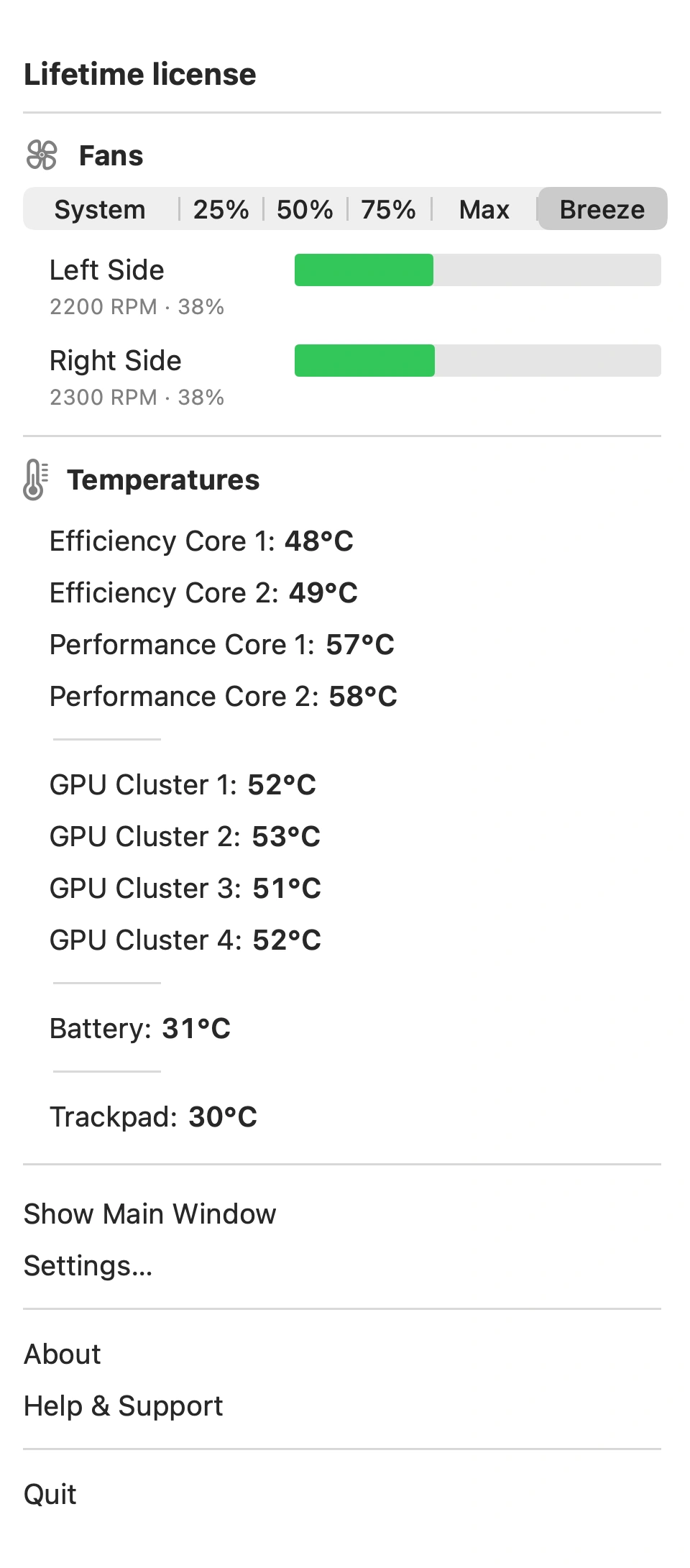
Keep an eye on CPU and GPU temperatures and fan speed in the menu bar, with your work still in view.
Choose your main sources, reading order and appearance. Open the menu to see more, change mode or go to settings.
Close the main window and keep an eye on your Mac: readings and quick mode selection remain in the menu bar.
Thermal protection responds to the hottest available fresh CPU or GPU reading.
At 90 °C and above, Breeze switches to maximum fan speed. Once the temperature falls below 85 °C control returns to the corresponding mode.
If System is selected, it remains selected and control returns to macOS after the protective speed increase. When temperature data is unavailable, the app stops manual control.
Thermal protection uses the available CPU and GPU sensors. Its operation and permitted fan speeds depend on your Mac model.
Compare temperature changes while editing, gaming or doing everyday work. The graph shows heat over time.
Choose a history period and compare readings with the current state. When measurements are missing, the graph keeps a gap.
You can clear history and peak values. Measurements can be exported to a file.
See how temperatures and fan speeds changed. Exports and CSV logs save measurements for later analysis.
Choose a folder, logging interval and readings. Breeze saves temperatures and fan speeds as files on your Mac.
A separate export includes the current snapshot, history and peak values.
How Breeze handles dataSave separate temperature rules for power adapter and battery use.
Choose a temperature threshold and receive notifications based on fresh readings. Add a sound if you like.
Open the main window and app menu using your own keyboard shortcuts.
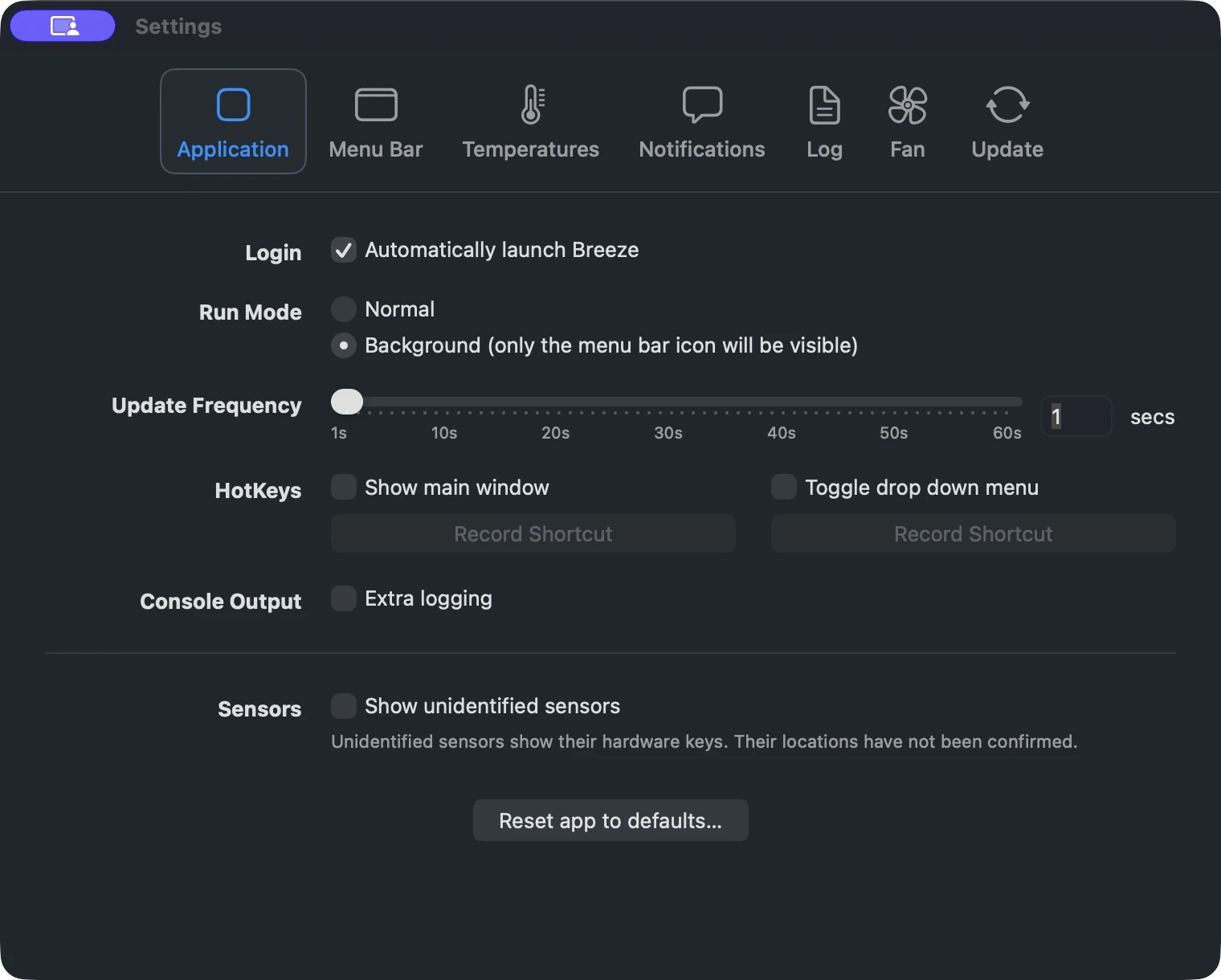
Enable launch at login and background mode: Breeze stays in the menu bar after you close its windows.
Breeze returns normal control to macOS when it stops monitoring manual fan control.
When monitoring is paused, the Mac sleeps, the app quits or the helper connection is lost, normal control returns to macOS.
Fan speed limits account for the specific hardware. The permitted speeds and available sensors are determined for your Mac model.
Check compatibility